
THE ESSENTIALS
Before you begin
- Mixify installed on each participant’s phone.
- An active internet connection on every device.
- Use the same Listen Together server if you have changed the server setting.
LET’S DO THIS
Step by step
- 01
Open Listen Together
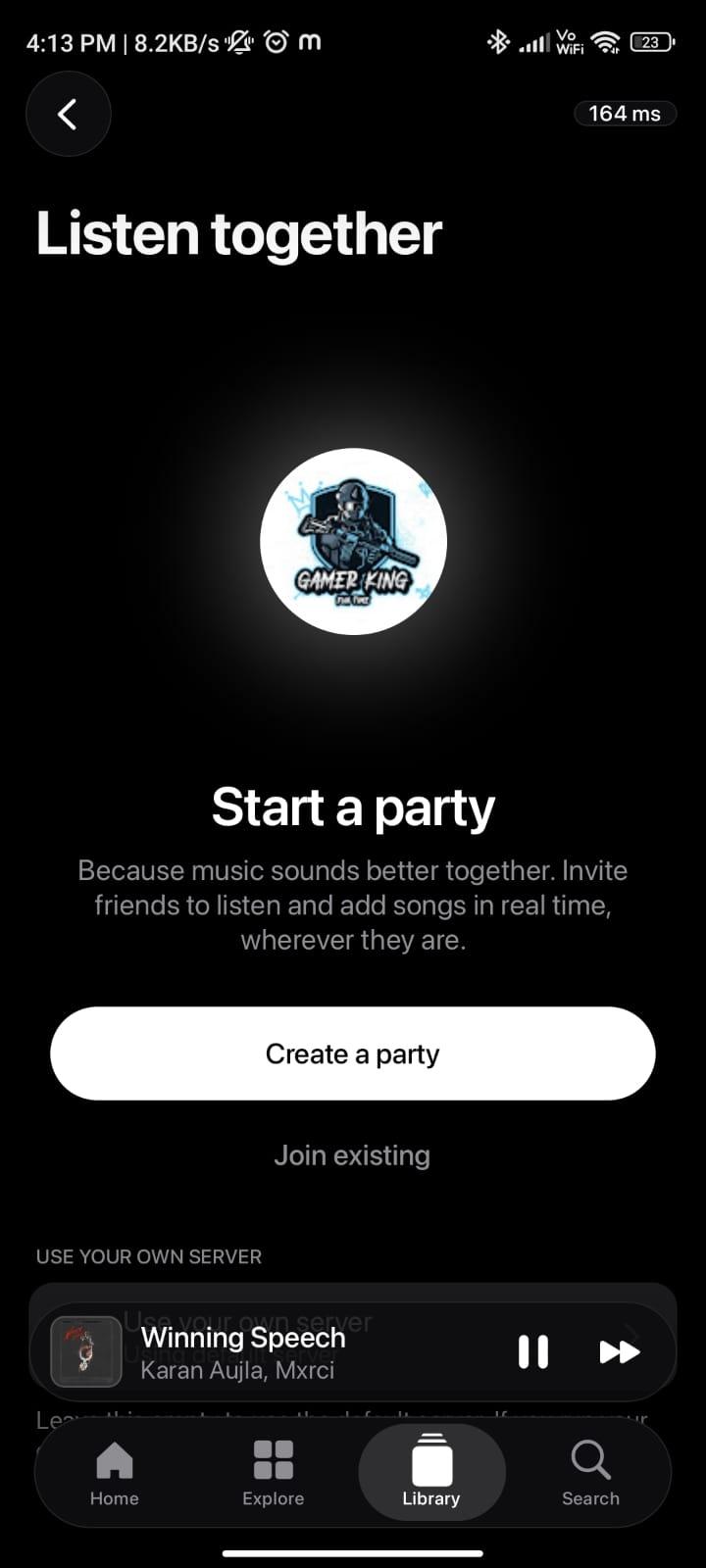
Open the Listen Together screen in Mixify. Look for the screen headed “Listen together”, with “Create a party” and “Join existing”. Navigation can vary by app version.
- 02
Create a party
The host taps Create a party and completes any name or room setup shown in the app. Keep the host’s session open while friends join.
- 03
Share the invitation
Share the room code or invitation link using the room’s available copy or share action. Send it privately to the people you want to invite.
- 04
Join from another phone
Your friend opens Listen Together, taps Join existing and enters the code. If they use an invitation link, open it with Mixify when Android offers that option.
- 05
Start listening together
Once the app confirms that participants have joined, the host starts a song. Use the room’s available controls to manage the session. Each phone needs its own working connection.
Joining from an invitation link
A room invitation uses a link such as https://mixify.co.in/listen?code=ABC123. This is an example, not an active room. If the link opens a web invitation, choose Open Mixify or copy the code into Join existing. If Mixify is not installed, install it first, then return to the invitation. Downloading the app does not automatically preserve or join that room.
A LITTLE HELP
If something gets stuck
The room cannot be found
Ask the host to confirm that the party is still open and send the current code again. Check for typing errors.
Friends cannot connect to the same session
Check internet access on both phones. If someone changed the custom server setting, make sure everyone is using the same server.
The invite stays in the browser
Use the invitation page’s Open Mixify action, or join manually with the room code. Android’s supported-link settings and the installed app version can affect direct opening.
Playback falls out of sync
Check both connections, keep the host connected and try leaving and rejoining the session. Network delays or an unavailable track can interrupt shared playback.
GOOD TO KNOW
Common questions
Can I join directly from my desktop browser?
The website presents the invitation. The shared listening session runs in the Android app.
Does an invitation prove that a room is active?
No. The app checks the room when you join. The host must still have an available session.
Ready for your next listen?
Get the official Android APK or check the latest release notes.